Oncall
Wrapper around the upstream Grafana OnCall Helm chart (v1.16.5). On-call scheduling, escalation chains, and alert routing, deployed as a Grafana app plugin backed by its own engine/celery/redis stack.
Why it's in KubeAid
Provides on-call scheduling and alert notification (including Telegram) on top of Grafana, for teams that route Alertmanager alerts through Grafana OnCall rather than a separate on-call tool.
Prerequisites
- Grafana with the
grafana-oncall-appplugin reachable, and Keycloak (or another OIDC provider) for user sign-in. - An external PostgreSQL database - the bundled
postgresqlsub-chart is disabled; this chart provisions a CloudNativePG cluster viaglobal.postgresqlinstead. - An external RabbitMQ - the bundled
rabbitmqsub-chart is disabled in favor ofglobal.rabbitmq.
Key values / KubeAid-specific configuration
| Value | Description | Default |
|---|---|---|
oncall.grafanaPluginInstall.enabled | Install the grafana-oncall-app plugin from a local registry via an init container (air-gapped clusters) | false |
oncall.oncall.telegram.enabled | Enable Telegram notifications | true |
oncall.database.type | Database backend | postgresql |
oncall.postgresql.enabled / oncall.mariadb.enabled | Bundled DB sub-charts | both false |
oncall.redis.architecture | Redis topology - OnCall only ever connects to -master | standalone |
oncall.rabbitmq.enabled | Bundled RabbitMQ sub-chart | false |
global.postgresql.instances / .size | CloudNativePG cluster sizing | 2 / 2Gi |
global.postgresql.backup.enabled | Logical backups to object storage | true |
global.rabbitmq.instanceName / .replicas | External RabbitMQ instance | oncall-rabbitmq / 1 |
Operational notes
- First-time setup: after sync, open the
grafana-oncall-appplugin page in Grafana and set the backend URL tohttp://oncall-engine:8080; users then sign in via Keycloak.
Restore
-
Copy the backup file to the CloudNativePG (psql) pod.
-
Restore users and schedule:
psql# Drops the databaseDROP DATABASE oncall;# Create Empty DBCREATE DATABASE oncall;Then, with a clean DB, restore it:
psql -d oncall -U postgres < backup.sql# Reset the oncall passwordpsqlALTER USER oncall WITH PASSWORD '<oncall user password which is in secrets>'; -
Restart the
oncall-celery,oncall-grafana, andoncall-enginepods and wait for them to come back online. -
Users sign back in via Keycloak.
Telegram notifications
Prerequisites:
- A Telegram bot for Grafana OnCall to send messages through — create one via https://core.telegram.org/bots#how-do-i-create-a-bot.
- The Telegram mobile app, and optionally Telegram Desktop (
sudo snap install telegram-desktop) or Telegram Web. - [For admins] the user has the correct Grafana role/access (granted via Keycloak or your OIDC provider).
Linking a user's account:
- Log in to Grafana, open the menu, and navigate to
Alerts & IRM > Oncall > Users. - Click
Editnext to your username, thenLink Telegram Account— this opens a link to the Telegram bot. - Send a message to the bot; it replies with a code.
- Switch back to Grafana, copy the generated code, and paste it into the Telegram chat with the bot to complete the link.
- Refresh the Grafana page, open
Editon your username again, and setNotify By > Telegramunder bothDefault NotificationsandImportant Notifications.
Alert notification template (Jinja2), tuned to this chart's alert label set:
Title:
<b>{{ payload.labels.alertname }}</b>
Body:
<b>Title:</b> {{ payload.annotations.summary }}
<b>Description:</b> {{ payload.annotations.description }}
<b>Severity:</b> {{ payload.labels.severity }}
<b>Status:</b> {{ payload.status }}
<b>Start Time:</b> {{ payload.startsAt }}

<b>Labels:</b>
{%- for label in payload.labels -%}
{%- if label not in ["pushprox_target", "device", "alertname", "severity", "mountpoint", "alert_id"] %}
<b>{{ label }}:</b> <i>{{ payload.labels[label] }}</i>
{%- endif -%}
{% endfor %}
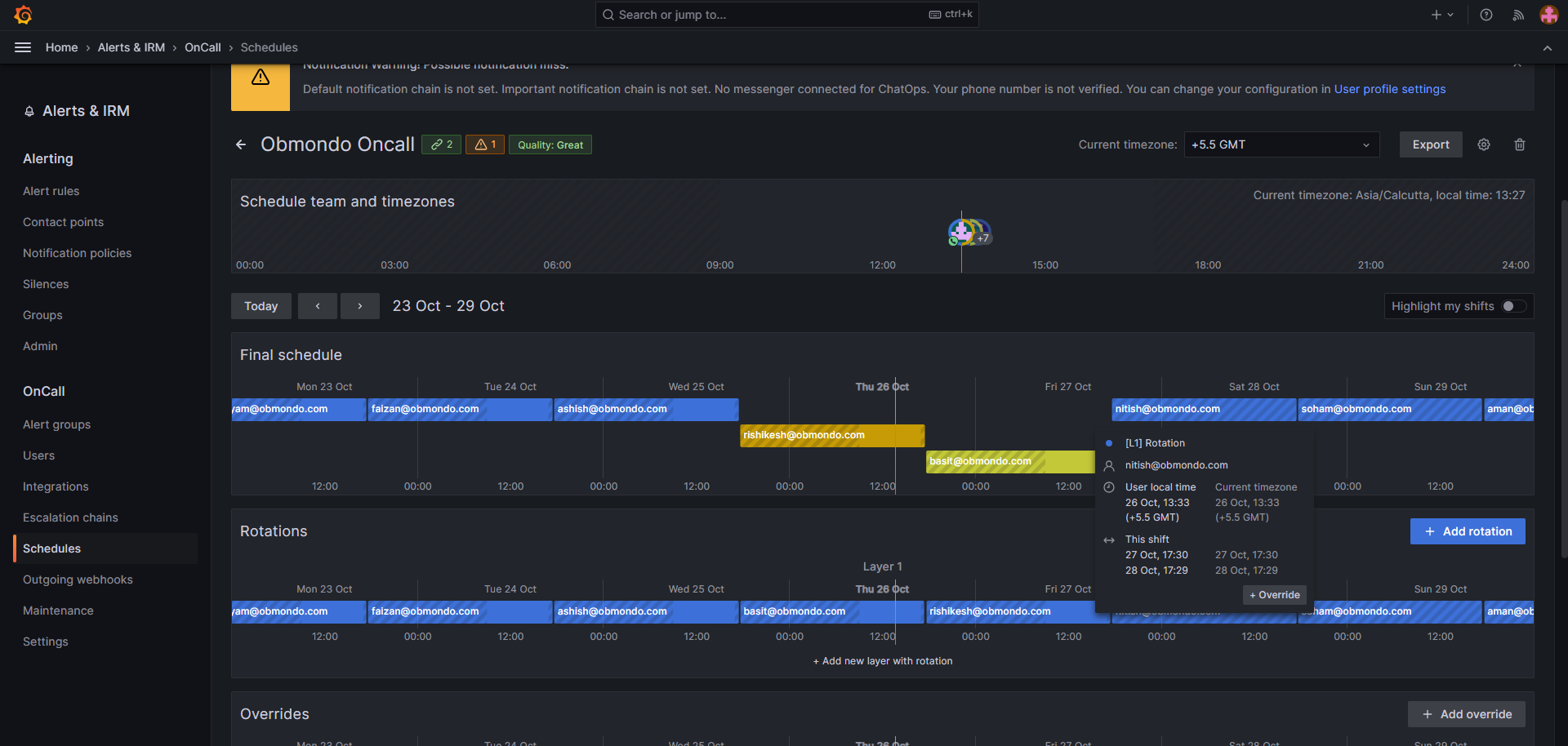
Shift overrides
The Overrides section sits below the main schedule rotations — use it for one-time changes to specific
shifts (e.g. swapping a day with a colleague):
- Hover over your name and the date you want to change; click the override option that appears.
- Select the employee you're swapping with from the drop-down and save.
- Repeat from the other employee's side to complete the swap.